Microsoft Purview deployment models — Markdown collection
Six consolidated guides based on Microsoft’s deployment-model overview, retrieved 7 September 2026. Each guide combines its introduction and all deployment steps, with meaningful image content converted to searchable text, tables or Mermaid diagrams.
Detailed review completed 7 September 2026: all 30 source pages, 11 source tables (51 data rows) and seven image assets were compared with this collection. The main deployment content was already present; detail-level omissions and a diagram-interpretation ambiguity were corrected. See the review findings and page-by-page coverage.
Choose a model
| # | Guide | Use it for | Steps |
|---|---|---|---|
| 1 | Secure by default | Default labels, priority data, historical content and ongoing protection | 4 |
| 2 | Prevent data leaks to shadow AI | Discover AI use, control access, protect transfers and govern interactions | 4 |
| 3 | Secure and govern Copilot agents | Protect knowledge sources and the agent interaction lifecycle | 4 |
| 4 | Data Security Posture Management | Establish analytics, assess exposure and act on recommendations | 4 |
| 5 | Lightweight data-leakage protection | Adopt a Good/Better/Best sequence with a smaller initial setup | 3 |
| 6 | Reduce classification false positives | Select and tune SITs, EDM, trainable classifiers and fingerprinting | 4 |
The numbers follow Microsoft’s overview order. These are alternative or complementary deployment patterns, not six mandatory phases of one deployment.
Microsoft describes these engineering-authored models as scenario-based guidance drawn from proven deployments for IT/security professionals and compliance officers. They provide a starting configuration for a business need, with feature references for implementation detail. New administrators can start with Learn about Microsoft Purview.
What is included
- 30 source pages: the overview, six introductions and all 23 step pages.
- Seven distinct image assets: six blueprints plus the separate secure-by-default thumbnail. Repeated appearances are consolidated.
- Image-only activities, outcomes, product ownership markers, estimates and architecture details.
- Configuration examples, limits and timing values, with examples distinguished from required settings.
- Source coverage and image register, including source metadata and image fingerprints.
- Supporting references, retaining the original links to feature documentation, licensing and examples.
The lightweight model’s image appears only on the overview; it is included here despite the empty blueprint section on its introduction page. No directly linked PDF was found in the collected article bodies. The overview’s additional Copilot blueprint guide remains a supporting link outside this six-model conversion.
How content was converted
This is a consolidated, reworded technical reference, not a verbatim archive. Repeated navigation, summaries and blueprint appearances are consolidated. Each deployment step links to its original Microsoft page, and each reconstructed blueprint links to its original image.
| Original content | Markdown representation |
|---|---|
| Ordered deployment/maturity stages | Mermaid flowchart plus activity/outcome tables |
| Labels, settings, roles, timings and scenario choices | Tables |
| DSPM architecture and operating ribbon | Separate Mermaid diagrams plus a context table |
| Classification-technology comparison | Comparison and scenario tables; no invented sequence between technologies |
| Product superscripts and acronyms | Explicit ownership keys and expanded terminology |
| Decorative branding/icons | Omitted where they add no deployment meaning |
Mermaid-capable Markdown viewers render the diagrams directly. Their accompanying text/tables retain the deployment meaning in viewers without Mermaid support. No remote image needs to load to read the converted technical content.
Source differences preserved
| Model | Detail needing attention |
|---|---|
| Secure by default | The Highly Confidential/Internal exception footer says Confidential; the general settings table and credential-specific instructions differ; container and library labeling are separate tasks |
| Shadow AI | The image describes network blocking while the step describes detection; broad interaction claims must be read with workload support |
| Copilot agents | The Dataverse policy section lacks a detailed procedure; file-processing restrictions and prompt/web-query restrictions are distinct |
| DSPM | The image includes Security Copilot, while the steps describe it as optional; labels are recommended rather than required for DSPM enablement |
| Lightweight protection | The image shows automatic client labeling, but the step starts with recommendations; workload-specific condition support needs checking |
| False positives | The example names a Business Context classifier; the scenario table includes an employee-ID example under customer/patient data |
These differences are recorded rather than silently corrected. Conversion notes are editorial explanations, not additional Microsoft requirements. Product limits, licensing names and preview status are retained as stated by the collected model pages; they are not independently refreshed deployment advice.
Terminology
| Term | Meaning |
|---|---|
| DLP | Data Loss Prevention |
| DLM | Data Lifecycle Management |
| DSPM | Data Security Posture Management |
| EDM | Exact Data Match |
| IRM | Insider Risk Management |
| SIT | Sensitive information type |
| TC | Trainable classifier |
| Grounding data | Information supplied or retrieved to inform an AI response |
| Client labeling | Label recommendations/application in supported user applications |
| Service-side labeling | Policy-based labeling of supported stored files or email in transit |
| Container label | Label governing a site/group/Team; distinct from labels on its files |
For a later refresh, start with the source and image register, recheck all six introductions and 23 steps, compare the image fingerprints, and revisit the recorded discrepancies. Supporting feature pages can then be converted as a separate collection without obscuring the boundary of these six models.
Conversion checks
All six guides, 23 step anchors, 30 source-page entries and seven image mappings were checked. Local links and table structures passed validation. All six Mermaid diagrams rendered successfully and were visually reviewed; the rendered collection showed no horizontal overflow at a 1440-pixel viewport. The detailed label-settings and eight-scenario tables were also inspected visually. These checks validate the conversion, not the behavior of the Microsoft services described.
1. Secure by default with Microsoft Purview
Collection index · Microsoft introduction
Converted 7 September 2026. This is a consolidated, reworded technical reference, with diagram content reconstructed below. Microsoft’s example configurations and source-specific caveats are distinguished from conversion notes. See source coverage.
Purpose, audience and prerequisites
Use default sensitivity labels to protect ordinary work immediately, then teach users how to handle justified exceptions. This complements manual and automatic classification instead of waiting for users to classify every file correctly. Library defaults provide a route to scale, but site labels and file labels require separate configuration.
The model assumes administrators understand Information Protection, Data Loss Prevention (DLP) and Insider Risk Management (IRM). Its scope is a staged deployment pattern, not a complete project plan or exhaustive product manual. Confirm licensing for default library labeling, automatic labeling, DLP and IRM/Adaptive Protection through the source’s subscription reference.
The introductory example permits gradual adoption: start with Confidential/All Employees on SharePoint plus external-sharing DLP, expand document defaults while email inherits attachment labels, and add encryption later. Protection therefore need not be introduced everywhere in a single change.
In the first milestone, the source leaves other workloads at General. It highlights protection that travels with documents; integration with Office, Acrobat Reader, Teams, Power BI and Defender for Cloud Apps; Copilot interaction protection; and extension to Azure/AWS data. The blueprint closely follows Microsoft’s internal labeling strategy, linked in supporting references.
Blueprint converted from images
Sources: full blueprint, IMG07 and overview thumbnail, IMG01. They describe the same progression. The full image is dated 4 May 2025.


| Stage | Activities represented in the image | Intended result | Image effort estimate |
|---|---|---|---|
| Foundational | File/site defaults; prerequisite services and analytics; exception training; label-driven DLP | Protection for new or changed Microsoft 365 content | 1 week |
| Managed | Priority libraries; credential/context-based automatic labeling; unlabeled-content DLP; behavioral detection and Adaptive Protection | Priority content protected | 2 weeks |
| Optimized | Client classification at lower thresholds; simulation for files at rest; classifier tuning; automation for historical/in-use content | Historical Microsoft 365 content protected | Repeated 2-week iterations |
| Strategic | Behavior reviews; additional labeling scenarios; ownership/lifecycle accountability; non-Microsoft 365 protection | Protection extends beyond Microsoft 365 | Situational |
From foundational protection to strategic operation
Scroll sideways to read the full diagram →
View diagram source
flowchart LR
    F["Foundational<br/>Defaults and new content"] --> M["Managed<br/>Priority and highly sensitive content"]
    M --> O["Optimized<br/>Historical estate and automation"]
    O --> S["Strategic<br/>Operations and wider data sources"]
The arrows reproduce stage order, not a promise that every organization can meet these estimates. Image colors distinguish stages; shield/diamond/hourglass icons encode stage, activity and effort, respectively.
Step 1 — Default labeling and protection
Label taxonomy
| Parent | Intended audience/use |
|---|---|
| Public | Approved for public release |
| General | Routine business information; trusted external collaboration allowed |
| Confidential | Sensitive business information with controlled distribution |
| Highly Confidential | Critical information requiring stronger restrictions |
| Optional Personal/Non-business | Lowest-priority, unprotected classification if personal content is permitted on managed devices |
Confidential and Highly Confidential each have All Employees, Specific People and Internal exception children. All Employees refers to the organization-wide audience configured in the label; Specific People lets authors choose recipients; Internal exception accommodates processes that cannot use encryption while retaining sharing restrictions.
The source’s top-level Highly Confidential description says to share only with named recipients, even though its example children include All Employees. Preserve this tension when adapting the taxonomy.
Recommended settings, separated into readable tables
The following are the source’s example settings, not a universal taxonomy. F = files/other data assets, E = email, M = meetings, S = sites. “Anonymous links blocked” means the source’s Anyone with the link restriction.
| Label | Scope | Encryption / permissions | Footer | Automatic labeling |
|---|---|---|---|---|
| Public | F, E | None specified | None | No |
| General | F, E, M, S | None specified | None | No |
| Confidential / All Employees | F, E, M, S | Organization users/groups: Co-Author; encryption can be deferred | Classified as Confidential |
No |
| Confidential / Specific People | F, E, M, S | User-assigned; Encrypt-Only in Outlook; prompt in Word/PowerPoint/Excel | Classified as Confidential |
No |
| Confidential / Internal exception | F, E, M, S | No encryption | Classified as Confidential |
No |
| Highly Confidential / All Employees | F, E, M, S | Organization users/groups: Co-Author | Classified as Highly Confidential |
Yes; credentials are a recommended use case |
| Highly Confidential / Specific People | F, E, M, S | User-assigned; Do Not Forward in Outlook; prompt in Word/PowerPoint/Excel | Classified as Highly Confidential |
No in this table; see Step 2’s credential-specific recommendation |
| Highly Confidential / Internal exception | F, E, M, S | No encryption | Classified as Confidential as printed in the source |
No |
| Label | Default/use | Site privacy offered in the example table | DLP sharing restriction |
|---|---|---|---|
| Public | Public-release content | Not specified | None |
| General | Email default; sites used with external partners | Private or Public | Anonymous links blocked |
| Confidential / All Employees | Document and site default | Private or Public | Anonymous links and external sharing blocked |
| Confidential / Specific People | Trusted named recipients, including external collaboration | Private or Public | Anonymous links blocked |
| Confidential / Internal exception | Justified encryption incompatibility | Private or Public | Anonymous links and external sharing blocked |
| Highly Confidential / All Employees | Automatic classification | Private or Public | Anonymous links and external sharing blocked |
| Highly Confidential / Specific People | Named recipients with selected permissions | Private or Public | Anonymous links and external sharing blocked |
| Highly Confidential / Internal exception | Justified encryption incompatibility for critical content | Private or Public | Anonymous links and external sharing blocked |
Conversion notes: The Highly Confidential/Internal exception footer appears inconsistent with its parent. The source’s descriptions of permission levels and the explicit Co-Author setting are not identical; the table above preserves the actual setting rather than inventing a resolution. The table allows Private/Public, while the accompanying rollout guidance recommends Private by default. Review these differences before implementation.
User-facing descriptions retained from the source table
These descriptions supplement the settings above; they do not resolve the source’s permission-wording differences.
| Label | Additional user-facing meaning |
|---|---|
| Confidential / All Employees | The description promises full permissions for employees and says data owners can track and revoke content |
| Confidential / Specific People | Trusted recipients may be inside or outside the organization and can reshare the content |
| Confidential / Internal exception | Use without encryption only with care and an appropriate business justification; use DLP and IRM to manage deviations |
| Highly Confidential / All Employees | The description lists view, edit and reply permissions; data owners can track and revoke content |
| Highly Confidential / Specific People | Only the people selected by the author may view the content, at the permission level the author chooses |
| Highly Confidential / Internal exception | The same care, business justification and DLP/IRM handling apply to an encryption exception for highly confidential data |
Default behavior and operational choices
- Documents: Confidential / All Employees. For existing SharePoint files, the source uses service-side conditions covering
.pptx,.docx,.xlsxand.pdf. - Email: General, with inheritance from labeled attachments enabled separately.
- Sites/Teams: prefer private sites with organization-shareable links rather than public discoverability. Specific people links offer a tighter default.
- Use intuitive names and aim for at most five parents with five children each. Publish specialized labels only to the relevant audience.
- Avoid mixing ambiguous names such as Confidential, Restricted and Internal. Configure default sharing-link types through site sensitivity labels to distinguish General and Confidential collaboration sites.
- Use labels as DLP conditions. Existing content already shared in a prohibited way can generate alerts and policy tips.
- Encryption/file watermarking, site privacy/Conditional Access and data-source permissions are different protections for different asset types; a label does not imply identical behavior everywhere.
Ten prerequisite checks
| Check | Setting or operational requirement |
|---|---|
| SharePoint/OneDrive file processing | Enable support for labeled files and Office Online processing |
| Teams/site labels | Enable container labels and synchronization |
| Label mismatch notices | Notify both document and site owners when a document is more sensitive than its site; keep -BlockSendLabelMismatchEmail at $False; provide -LabelMismatchEmailHelpLink |
| PDF support | Enable labeled PDF support in SharePoint/OneDrive |
| Sensitive-by-default sharing | Prevent guest access while DLP evaluation is pending |
| DLP analytics | Enable analytics |
| Encrypted co-authoring | Enable co-authoring for labeled encrypted documents |
| IRM analytics and indicators | Enable both analytics and the relevant policy indicators |
| Audit | Confirm Purview auditing is enabled |
| Guest identity integration | Enable SharePoint/OneDrive integration with Microsoft Entra B2B |
The source counts Teams/site enablement and mismatch notices together, and IRM analytics/indicators separately: these are the same ten source prerequisites regrouped for readability.
Exception training and priority traps
Train users on external sharing, choosing OneDrive versus a collaboration site, relabeling, encryption-incompatible add-ins and downgrade justification. Examples in the source distinguish a single file relabeled General, a partner collaboration site using General, and an Excel add-in requiring Internal exception.
In the partner-site example, an uploaded Confidential file stays protected; the notified owner can move the file or change its label. Training also explains why defaults protect information and how site/file labeling affects sharing.
A General library default cannot replace an already higher-priority Confidential / All Employees client label. Conversely, an Internal exception child placed above All Employees may not count as a downgrade and may avoid a justification prompt. Review ordering and justification together. Container labeling alone must not be presented as automatic file-label inheritance.
Expected result: published labels, document/email defaults, exception training and DLP controls for confidential sharing.
Step 2 — Protect priority and highly sensitive content
- Prioritize leadership sites and locations identified by Content Explorer, reports or Graph queries. If the default is already Confidential/All Employees, concentrate on content needing higher protection.
- Configure both the site label and each library’s default file label. Site owners can perform these tasks; administrators also have site-management controls.
- Use client recommendations for lower sensitive-data thresholds, retaining user review. Use service policies for SharePoint/OneDrive files at rest and email in transit; these can also evaluate extension, size and document properties.
- For All credentials, the source specifies Highly Confidential / Specific People on clients and Highly Confidential / All Employees for service-side policies. Preserve this use-case-specific difference from Step 1’s general table.
- Add Content is not labeled conditions to Endpoint/Exchange DLP. For Office/PDF files and relevant endpoint actions such as cloud upload, users must classify content before sending it.
- Enable behavioral detection for label downgrading, downloads, obfuscation and exfiltration. Start with a test Adaptive Protection policy and tune triggers/thresholds. An action merely audited for an ordinary user can be blocked for an elevated-risk user.
The source prioritizes site context before SIT-only classification: for the selected priority sites, use a service policy to apply Confidential / All Employees to Office/PDF extensions and cover existing files. Client recommendations also let users report inappropriate suggestions. The Adaptive Protection example specifically audits sharing of General files for ordinary users and blocks the same sharing for a high-risk user.
Expected result: priority content protected, fewer unlabeled outbound files and protection responsive to user risk.
Step 3 — Expand to the Microsoft 365 estate
Classification strategy
| Mechanism | Source guidance |
|---|---|
| Client recommendations | Select industry-relevant SITs; example threshold 1–9 matches |
| Client automatic application | Example 10+ matches and/or trainable classifiers |
| Service simulation | Prioritize sites/users and simulate before applying to files at rest |
| Contextual service conditions | Sharing state, extension, name, document property, size and creator |
| Historical labeling | Batch Office/PDF files by sites, matching the intended site classification; start with higher sensitivity |
| Service throughput stated in this page | Up to 100,000 files/day per organization; verify current service limits before scheduling |
The numeric thresholds are examples, not mandatory or default values. A Confidential client default lets advanced classification focus on Highly Confidential exceptions. New/edited files and historical files need different coverage.
The source also offers a General Office-client default followed by Confidential / All Employees when saving into an appropriately configured SharePoint library. It refers to 300+ SITs and progressive addition of SITs/classifiers. For service policies, examples include template properties, filename prefixes, file size and leadership authors; for Highly Confidential content at rest, it often recommends higher thresholds than on clients to reduce false positives.
Reduce false positives using higher confidence/counts, corroborating SITs with AND, custom SITs, narrower regex patterns and word boundaries. Trainable classifiers can add document context, for example financial content plus credit-card detection. Consider EDM and document fingerprints for DLP. This page states that EDM and document fingerprinting are unavailable for auto-labeling; retain that source-scoped limitation and check the linked product reference for current workload support.
Scaling site and library configuration
| Route | Action |
|---|---|
| Site-owner campaign | Ask owners to configure both labels; communicate the planned automatic-default date |
| Automation | Find remaining unlabeled sites via Graph and apply container/library defaults |
| Gradual expiry | Where risk permits, combine unlabeled-file DLP with automatic labeling while older sites expire |
| Historical batches | Record when site labels were applied and progressively add those sites to service policies |
The source names Set-PnPTenantSite -SensitivityLabel for sites and the REST property DefaultSensitivityLabelForLibrary for library defaults. These are reference identifiers, not a supplied executable script. Its library example links to a third-party article, retained in references.
Expected result: broader historical coverage and repeatable administration without assuming that a site label automatically relabels every existing file.
Step 4 — Operations and wider protection
| Operational review | Follow-up |
|---|---|
| Unlabeled sites/Teams | Identify through Graph; contact owners or remediate |
| Site/library label mismatch | Use Graph to identify differences; contact site owners or correct the configuration |
| Unprotected or permissively labeled sensitive data | Apply SIT-based DLP to catch sharing exceptions |
| Risky labeling/sharing | Review IRM audit, tune alerts and strengthen Adaptive Protection |
| Ownership | Maintain at least two owners per site; use site ownership policies to identify gaps and contact existing owners or members |
| Site lifecycle | Remove unused sites through inactive-site policies; require regular owner attestation; initiate access reviews, especially for heavily shared/accessed sites |
| Broad access | Identify Everyone except external users sharing through SharePoint Advanced Management and contact site owners |
Extend the taxonomy carefully for multi-tenant/trusted-domain collaboration, security-group-only tented projects, employees versus vendors, and regional requirements. Publish specialized labels only to the relevant people. Unpublishing a project label prevents new use but does not remove existing protection.
The multi-domain example is @contoso.com + @adventureworks.com, using Confidential and/or Highly Confidential encrypted labels. A tented-project example is a merger or acquisition. The user-segmentation examples include full-time employees, vendors, offshore teams and country/region teams; publish regional labels to the relevant users and align container/library defaults.
For on-premises file shares/SharePoint Server, the source points to the Information Protection scanner. It also describes migration into correctly defaulted SharePoint locations. BYOK and Double Key Encryption are outside this model’s detailed scope: the former concerns key ownership/rotation; the latter targets a small highly sensitive subset and affects collaboration.
The source describes protection beyond Microsoft 365 for Azure SQL Database, Blob Storage, ADLS Gen2 and Amazon S3 as public preview. Examples include deny-all-except storage policies and restricting labeled sensitive SQL columns. This is the status stated by the source, not an independently refreshed availability claim.
The storage example retains access for data security administrators when overly sensitive content enters a storage account; SQL policies can specify who retains access to a labeled column. The page also dates the unified Microsoft Purview portal’s general availability to July 2024, bringing former Azure Purview and Microsoft Purview experiences together.
Source discrepancies to retain
- Default container labels, library defaults and historical auto-labeling are separate tasks.
- The general auto-labeling table and the credentials-specific instruction differ for Highly Confidential/Specific People.
- The Highly Confidential/Internal exception footer and permission-description wording require validation.
- The narrative’s phrase about advanced classifiers is narrower than its subsequent discussion of EDM/fingerprinting. Model 6 distinguishes the techniques explicitly.
- Preview status and capacity limits may age independently of the blueprint image.
2. Prevent data leaks to shadow AI
Collection index · Microsoft introduction
Converted 7 September 2026. Consolidated and reworded from the introduction, four steps and their shared blueprint. Source terminology and coverage differences are recorded explicitly.
Purpose and prerequisites
Shadow AI means AI services used without organizational approval, visibility or governance. The model addresses leakage, compliance exposure and reputational risk while retaining a path for approved AI use.
Administrators should understand Purview DLP, Defender for Cloud Apps, Entra Internet Access and Intune. The introduction names those four product families for subscription review; later steps also use IRM, Adaptive Protection, Audit, Communication Compliance, Data Lifecycle Management (DLM) and eDiscovery. Follow the source licensing reference and workload-specific references rather than assuming a single license covers the entire model.
Blueprint converted from the image
IMG02: original blueprint, dated 18 July 2025. The superscript product key is important and is preserved here:


| Image marker | Product |
|---|---|
| 1 | Microsoft Defender for Cloud Apps |
| 2 | Microsoft Entra |
| 3 | Microsoft Intune |
| 4 | Microsoft Purview |
| Stage | Image activities and ownership | Outcome |
|---|---|---|
| Discover | App discovery (1); interaction discovery (4) | Previously unknown AI usage becomes visible |
| Block access | Organization-level blocking (1); limited app access (1) with user/group restrictions (2); elevated-risk blocking (2, 4); installation restrictions (3) | Unsanctioned app access is blocked in the controlled environment |
| Secure data | Purview: paste/upload controls, elevated-risk prompt restrictions in Edge, sensitive-prompt blocking in Edge, network-provider protection | Sensitive content is prevented from reaching sanctioned apps through supported controls |
| Govern data | Purview: audit, inappropriate-prompt detection, retain/delete, prompt investigation | Supported Edge AI prompts remain available for investigations |
Discover, restrict, protect and govern AI use
Scroll sideways to read the full diagram →
View diagram source
flowchart LR
    D["Discover apps and interactions"] --> B["Block unsanctioned access"]
    B --> P["Protect data in sanctioned apps"]
    P --> G["Govern captured interactions<br/>Microsoft Edge in the blueprint"]
The image is an ordered deployment roadmap, not a packet-flow architecture. It supplies no effort estimates. Its final two columns specifically mention Microsoft Edge; do not remove that qualifier when reusing the diagram.
Step 1 — Discover applications and interactions
- In Defender for Cloud Apps, filter the catalog by App category → Generative AI. Inspect risk scores and usage trends, then classify apps as sanctioned or unsanctioned according to organizational policy.
- Use DSPM for AI reports and Activity Explorer to investigate interactions, not just whether a domain was visited.
- Configure distinct discovery policies for the following signals.
| Signal | Control named in the source |
|---|---|
| Visits to AI sites | IRM |
| Sensitive information in Edge prompts | Browser Data Security |
| Sensitive data pasted/uploaded to AI sites | Endpoint DLP |
| Risky browser/network AI activity | IRM policies, scoped and tuned for the organization |
Use this stage to establish a baseline before introducing blocks. Risk scores inform sanctioning; they do not replace the organization’s approval decision.
Expected result: an app inventory, observable interactions and an initial picture of risky AI usage.
Step 2 — Restrict unsanctioned access
| Enforcement layer | Deployment action | Boundary |
|---|---|---|
| Organization/network | Mark discovered AI apps Unsanctioned in Defender for Cloud Apps and confirm propagation to the enforcing network controls | A tag alone is not evidence that enforcement reached the client/network |
| User/group | Configure Entra Internet Access for granular restrictions or limited permitted use | Policy scope matters |
| Elevated-risk users | Combine IRM/Adaptive Protection with Conditional Access | Risk-based restrictions supplement blanket app decisions |
| Managed device installation | Use Intune to restrict installation of unapproved apps | Applies to the managed-device scenarios covered by the chosen platform control |
The page warns that managed-network blocking does not prevent access from unmanaged devices or personal networks. Its later Intune section addresses managed installations; it must not be interpreted as closing every unmanaged access route.
Expected result: coordinated organizational, identity and device restrictions with verified enforcement.
Step 3 — Protect content sent to approved applications
| Channel/control | Source action |
|---|---|
| Sensitivity labels with encryption | Protect files so an AI service without decryption rights cannot read the encrypted artifact; see Model 1 |
| Endpoint DLP | Policy location Devices; conditions based on SITs or labels; block relevant paste, upload-to-cloud and clipboard actions for AI destinations |
| Browser Data Security | Inspect typed/pasted prompts in Microsoft Edge and block sensitive submissions to supported consumer AI apps |
| Network Data Security | Detect sensitive outbound data through other browsers, applications, APIs and add-ins |
| Defender for Cloud Apps | Investigate suspicious Microsoft 365 Copilot activity |
The examples for consumer destinations are ChatGPT, consumer Microsoft Copilot, DeepSeek and Google Gemini. These are examples in the source, not a complete support list.
For Endpoint DLP, simulate first, inspect Activity Explorer and tune false positives before enforcement. Keep location, sensitive-content conditions and restrictive actions explicit in the policy.
Source reconciliation: The blueprint says “block” for network-provider protection, whereas the step’s Network Data Security section describes detection. This conversion preserves the distinction; it does not upgrade detection into a guarantee of blocking. Also, an encrypted file and plaintext copied out of an authorized application are different data paths. Do not turn the source’s broad encryption wording into a claim that encryption alone prevents every paste operation.
Expected result: layered controls for encrypted artifacts, endpoint transfers and supported browser prompts, plus network visibility.
Step 4 — Govern captured AI interactions
| Capability | Configuration or investigation task |
|---|---|
| Audit | Verify auditing is active; use supported AI activity events for visibility |
| Communication Compliance | Configure classifiers and policies for inappropriate or prohibited prompt behavior |
| DLM | Include supported AI interaction locations in retention policies; set retention/deletion periods |
| eDiscovery | Search, preserve, collect, analyze, review and export relevant prompt/response data; apply holds where required |
| IRM + Adaptive Protection | Restrict elevated-risk users from submitting prompts in supported Edge scenarios |
The source says auditing is normally enabled, but asks administrators to verify it. Keep collection, retention and legal holds distinct: an audit event is not interchangeable with a retained full-content record.
Coverage note: The article uses broad language about “all” interactions, while its diagram is narrower and the linked capability pages determine supported applications, locations and content collection. This document does not infer universal capture of every third-party prompt. Validate the relevant application/location support before using these statements as deployment acceptance criteria.
Expected result: a governed lifecycle and investigation path for the interaction records covered by the configured services.
3. Secure and govern Microsoft 365 Copilot agents
Collection index · Microsoft introduction
Converted 7 September 2026. Consolidates the introduction, four steps and shared image. Grounding-data controls and interaction controls are kept separate.
Purpose and prerequisites
Agents can use organizational knowledge, including SharePoint and Dataverse. The model addresses excess access, unintended disclosure and stale answers by protecting both knowledge sources and the subsequent interaction lifecycle.
The intended administrator understands Information Protection, DLP, IRM, DLM and Compliance Manager. The introduction also lists Communication Compliance and eDiscovery among the capabilities requiring subscription review. Step 4 adds Data Security Investigations (DSI). Consult the source licensing link and the capability references for the features actually deployed.
The model is a staged implementation pattern. Its outcomes are objectives for configured controls, not a claim that all labeled data is automatically excluded from every agent.
Blueprint converted from the image
IMG03: source image, dated 26 August 2025.


| Stage | Image activities | Intended outcome |
|---|---|---|
| Discover | Audit; SharePoint oversharing assessment; Dataverse discovery through Unified Catalog; DSPM for AI Apps and Agents report | Identify security gaps |
| Protect grounding data | Labels for SharePoint/Dataverse; stale-data lifecycle controls; Copilot processing restrictions; SharePoint DLP and Dataverse data policies | Restrict sensitive grounding sources according to policy |
| Protect interactions | Inherit/display source sensitivity; restrict processing of sensitive references; IRM risky-AI detection | Reduce interaction-related data loss and insider risk |
| Govern | DLM retention/deletion; Communication Compliance; eDiscovery; DSI for grounding and interactions; Compliance Manager | Preserve and investigate governed interaction records |
Protect Copilot agents from grounding to interactions
Scroll sideways to read the full diagram →
View diagram source
flowchart LR
    D["Discover risks"] --> K["Protect grounding data"]
    K --> I["Protect interactions"]
    I --> G["Govern interaction records"]
The image uses SPO for SharePoint Online, DLM for Data Lifecycle Management, IRM for Insider Risk Management, CC for Communication Compliance, DSI for Data Security Investigations and CM for Compliance Manager. No effort estimate is shown.
The grounding-data outcome in the image and introduction is stronger than the qualified table above: it states that sensitive grounding information is not used as a knowledge source. That is the source’s deployment objective; the selected policies and supported sources determine which content is actually excluded.
Step 1 — Discover risk and gaps
| Task | Procedure / detail |
|---|---|
| Audit | Check status. If disabled, use Start recording user and admin activity. The page allows up to 60 minutes for activation |
| Oversharing | Use data risk assessments to find potentially overexposed SharePoint/OneDrive knowledge sources |
| Dataverse inventory | Use Purview Data Governance / Unified Catalog to discover sensitive Dataverse content |
| AI behavior | Review the DSPM for AI Apps and Agents report |
| Regulatory assessment | Use Compliance Manager assessments and improvement actions to identify gaps |
Auditing is usually active already, but the source explicitly calls for verification. Discover and remediate knowledge-source exposure before broad agent rollout.
Expected result: a baseline for access, sensitive content, risky use and regulatory gaps.
Step 2 — Protect grounding data
- Apply appropriate sensitivity labels to supported SharePoint and Dataverse sources. The page describes responses respecting user permissions and displaying the most restrictive label among referenced content. See Model 1 for the labeling deployment pattern.
- Use DLM policies on SharePoint sites and OneDrive accounts used for grounding. Set retention/deletion periods to the organization’s requirements so obsolete material can be removed appropriately.
- Create a custom DLP policy at the Microsoft 365 Copilot location. Match selected labels, such as Highly Confidential, and restrict processing of matching files.
- Simulate the restriction first and inspect affected files in Activity Explorer before enforcement.
- Configure Dataverse data policies for the supported knowledge-source scenario.
- Add SharePoint/OneDrive oversharing DLP for anonymous/“anyone” links, including labeled and unlabeled content.
Source caveat: The page’s Dataverse data-policy section links to the general Copilot DLP article and supplies no detailed Dataverse procedure. This conversion retains that gap rather than inventing portal steps or treating all agent connectors identically. Lifecycle deletion must also be reconciled with the organization’s retention obligations; the source does not specify a universal “stale” age.
Expected result: controlled grounding sources, lifecycle management and explicit processing restrictions.
Step 3 — Protect interactions
| Control | Verification/configuration |
|---|---|
| Sensitivity propagation | Label the knowledge source; start a conversation referencing it; confirm the most restrictive referenced sensitivity is displayed |
| Copilot DLP | Restrict processing of matching sensitive files even when the user otherwise has access to those files |
| Risky-AI detection | Create an IRM policy from Risky AI usage; choose users/groups, triggers and thresholds; enable the policy |
The source describes automatic inheritance and conversation-level protection. Preserve the distinction between sensitivity displayed in a conversation, the permissions on source files, and the DLP restriction selected for the workload.
Specifically, the page says a label is displayed for the entire conversation, informs users of its sensitivity, and has its associated protection policies enforced on the conversation. These are the page’s claims; the verification procedure above checks the displayed label and does not by itself demonstrate enforcement of every protection. Its risky-AI examples include attempts to access sensitive content and exfiltration through prompts.
Source caveat: This page discusses sensitive prompts not being used in web queries alongside file-processing restrictions. Those should not be collapsed into one configuration switch; the linked Copilot DLP reference defines which conditions/actions cover each case. The conversion does not infer that every reference restriction automatically configures prompt inspection.
Expected result: visible source sensitivity, restricted processing for matched references and detection of risky agent use.
Step 4 — Govern interaction records
| Capability | Role in the deployment |
|---|---|
| DLM | Configure policies for Microsoft 365 Copilot interaction locations; specify retention/deletion periods |
| Communication Compliance | Detect prohibited behavior using supported classifiers; the page gives jailbreak attempts, harassment and inappropriate images as examples |
| eDiscovery | Preserve, collect, analyze, review and export agent interactions for cases |
| DSI | Investigate the interaction together with its grounding-data context using AI-assisted investigation |
| Compliance Manager | Reassess AI requirements and track improvement actions as obligations change |
Compliance Manager appears in both initial discovery and ongoing governance. The image places it in the final stage; the step pages use it throughout. Both placements are retained.
Expected result: retained records, operational review, investigation and ongoing governance for the supported agent interactions.
Reading the model correctly
- Permission to read a file and permission for Copilot to process it are separate decisions in the source’s DLP example.
- Labeling, connector/workload support, retention and prompt inspection are not interchangeable features.
- The original image’s absolute outcome wording is a deployment objective, not proof that every sensitive grounding item is excluded.
- The source supplies no rollout-duration estimate or comprehensive per-agent support matrix; none is invented here.
4. Deploy and use Data Security Posture Management
Collection index · Microsoft introduction
Converted 7 September 2026. The source image is a capability/data-flow diagram, not the same four-column roadmap used by several other models. Its architecture and operating cycle are therefore represented separately.
Purpose and prerequisites
DSPM combines data-security signals to reveal exposed sensitive assets, risky activity and recommended policy changes. It brings together Information Protection, DLP and IRM; Security Copilot provides an optional investigation experience.
The model assumes familiarity with those Purview solutions. Check the source subscription reference, including Security Copilot entitlement if used. A labeling schema improves the analysis but is not a DSPM prerequisite in Step 1. The four steps end in a recurring monthly review cycle rather than a one-time configuration milestone.
Blueprint — architecture converted to Mermaid
IMG04: original DSPM image. It has no visible revision date or effort estimate.


DSPM connects analytics with security action
Scroll sideways to read the full diagram →
View diagram source
flowchart LR
    subgraph Inputs["Analytics inputs"]
        DLP["Data Loss Prevention"]
        IP["Information Protection"]
        IRM["Insider Risk Management"]
    end
    DLP --> DSPM["DSPM<br/>Correlated data-security context"]
    IP --> DSPM
    IRM --> DSPM
    DSPM --> Discover["Discover<br/>Trends and analytics reports"]
    DSPM --> Protect["Protect<br/>Recommendations for DLP and IRM"]
    DSPM --> Investigate["Investigate<br/>Security Copilot"]
| Image group | Contents transcribed into searchable text |
|---|---|
| DSPM context | Built-in/custom SITs; trainable classifiers; sensitivity labels; content analysis; risk indicators from Microsoft Graph logs; Adaptive Protection |
| Discover | Manual/automatic labeling trend; DLP protection trend; potentially risky users; unprotected sensitive assets across sources; high-risk activity against those assets |
| Protect | Recommendations informed by organizational risk; creation/tuning of DLP and IRM policies; correlated protection for priority threats |
| Investigate | Suggested prompts; open-ended prompts; Prompt Gallery; guided Promptbooks |
| Gallery categories | Alerts/policies; data at risk; potentially risky users; potentially suspicious activity; sensitive data |
The bottom ribbon in the image shows this operating sequence:
From analytics opt-in to posture tracking
Scroll sideways to read the full diagram →
View diagram source
flowchart LR
    A["Opt in to analytics"] --> B["Evaluate insights and act"]
    B --> C["Investigate with Security Copilot"]
    C --> D["Create recommended policies"]
    D --> E["Track posture through reports and trends"]
Security Copilot remains optional in the step pages even though it appears in the image ribbon. The monthly repeat instruction comes from the prose, not an inferred arrow in the image.
The source architecture uses connecting lines between capability groups. Arrowheads in the reconstruction express the logical input/output interpretation; they are not evidence of network direction, a direct API integration, or a required execution order between Discover, Protect and Investigate.
Step 1 — Establish foundations
| Foundation | Action |
|---|---|
| Classification priorities | Identify relevant built-in SITs; create custom SITs for business-specific identifiers, projects or proprietary data where needed |
| Labeling schema | Establish handling categories to improve analysis and later DLP policy creation; see Model 1 |
| IRM program | Define the risk program so user/activity insights can support recommendations and Adaptive Protection |
| Optional Security Copilot | Enable natural-language investigation and Promptbooks if required; the source specifies Data Security Viewer for use within DSPM |
Do not turn the recommendation to configure labels into a mandatory DSPM enablement condition. Likewise, omitting Security Copilot does not remove the report/recommendation portions of this model.
Expected result: a prioritized classification/risk context and, if chosen, investigation access.
Step 2 — Access and analytics
Roles stated by the model
| Role or group | Source-described access |
|---|---|
| Data Security Management | DSPM management |
| Data Security Viewer | Required for Security Copilot in DSPM |
| Insider Risk Management Admins | IRM-related DSPM capabilities |
| Entra ID Global Administrator | Broad access; minimize use |
| Entra Compliance Administrator | Compliance-oriented access |
Select the least privileged role appropriate to the task. This is the model’s list, not a newly validated complete role matrix.
Enablement sequence
- Opt in to DSPM to enable DLP and IRM analytics together, or enable those analytics independently.
- Confirm each solution’s settings show analytics enabled.
- Confirm the automatic initial scan has begun.
- Allow up to three days for the initial scan, as stated in the page.
Expected result: appropriate access and a baseline analysis in progress.
Step 3 — Reports, trends and recommendations
| View | What to examine |
|---|---|
| Unprotected sensitive assets | Files lacking DLP coverage and/or access-controlling labels; inspect locations and classifiers |
| Users with top risk-related activity | Activity against unprotected sensitive data, including departing/high-risk users and classifiers outside existing DLP scope |
| Labeling trend | Weekly proportion of assets receiving labels, manually or automatically |
| DLP coverage trend | Proportion of sensitive assets protected by at least one DLP policy |
| Risky-user trend | Weekly users assigned low/medium/high insider-risk severity |
| Recommendations | Gaps in current protection and proposed DLP/IRM changes based on asset and user signals |
Use filtering, review and export to assess the findings. The page says recommendations older than 30 days are removed and recommends reviewing them at least every 30 days. A recommendation’s absence after that interval is not evidence that the underlying risk was remediated.
Open Reports for the two analytics reports; the historical trends are on Overview. The source compares the unprotected-assets report with Content Explorer while describing its scope as the entire data estate.
Expected result: an understood risk baseline and prioritized actions rather than an unread dashboard.
Step 4 — Act and investigate
Policy creation and timing
Open Recommendations, select a finding, choose DLP or IRM policy creation, complete the guided settings, review and submit. Existing policies can be updated instead. The source says policy creation takes minutes and a triggering event takes about 24 hours to take effect. The policies then appear in their respective solution pages; further recommendations may follow.
Investigation entry points
- Choose Show Users Involved in a recommendation and ask follow-up questions.
- Open Security Copilot from the DSPM page for a broader user/activity investigation.
- Example investigation topics from the source: external sharing of sensitive files; cloud uploads during the preceding week; a particular user’s data activity over the preceding 30 days. These are reworded topics, not an exact prompt transcript.
| Guided investigation | Purpose | Inputs | Length/limit stated in source |
|---|---|---|---|
| Risky user investigation Promptbook | Identify users handling sensitive data and examine their activities, anomalies and related alerts | User principal name (UPN), timeframe | Six prompts; maximum 30 days |
| Sensitive data protection Promptbook | Identify/protect sensitive data and suggest policy changes and DLP rules | SIT or sensitivity label, duration | Six prompts; maximum 30 days |
| Copilot Prompt Gallery | Supply curated examples for investigations | Select a prompt category and supply its inputs | Five categories listed in the image table above |
Monthly operating cycle
Review reports/trends → reassess recommendations → create or update DLP/IRM policies → investigate flagged activity → evaluate residual risk. Repeat monthly and use the results to tune controls.
Timing reference
| Event | Source value | Meaning |
|---|---|---|
| Initial DSPM scan | Up to 3 days | Initialization, not a rollout-effort estimate |
| Policy creation | A few minutes | Guided creation task |
| Triggering event taking effect | About 24 hours | Source-described processing delay |
| Recommendation age/review cadence | 30 days | Recommendations can expire; review regularly |
| Promptbook lookback | At most 30 days | Input constraint in this guide |
| Program review | Monthly | Continuing operation |
These values are retained from the model; consult current product documentation for a live deployment.
5. Lightweight guide to mitigate data leakage
Collection index · Microsoft introduction
Converted 7 September 2026. This model has three, not four, steps. Its blueprint is present on the overview page but absent beneath the introduction’s blueprint heading; the overview image is included in the conversion below.
Purpose and prerequisites
Establish a small set of label, sharing and audit controls, then extend into endpoint protection, classification and adaptive enforcement. The staged Good / Better / Best approach is intended to reduce initial configuration effort while allowing later expansion.
Administrators should understand Information Protection and DLP; the final stage adds IRM and Adaptive Protection. Licensing names below reproduce the model’s statements, not an independently verified entitlement assessment. Consult the source subscription reference before deployment.
Blueprint converted to a comparison table
IMG05: original overview image. No revision date is printed.


| Level | Image activities | Outcome | Suggested effort | Step-page licensing statement |
|---|---|---|---|---|
| Good | Publish Confidential/AllEmployees; set document defaults; basic SharePoint/OneDrive/Exchange DLP; Audit | Foundational protection with limited setup | 1–2 weeks | Microsoft 365 Business Premium or above |
| Better | Custom SITs; client labeling; Teams and Endpoint DLP; email protection and inheritance | Endpoint coverage and classification automation | 2–4 weeks | Microsoft 365 Information Protection Governance (IPG) or above |
| Best | Encryption; service-side auto-labeling; IRM analytics; risk-adaptive DLP/Conditional Access | Continued improvement and risk-based protection | 1–2 weeks | Microsoft 365 E5 Compliance or above |
The image footnote says effort must be adapted to tenant size and organizational complexity. These are suggested efforts, not guaranteed elapsed delivery times or values to add into a fixed project schedule.
Build protection from good to better to best
Scroll sideways to read the full diagram →
View diagram source
flowchart LR
    G["Good<br/>Labels, baseline DLP and Audit"] --> B["Better<br/>Custom detection and endpoint coverage"]
    B --> X["Best<br/>Encryption, historical labeling and adaptive controls"]
Step 1 — Good: foundational controls
| Task | Settings/procedure retained from the page |
|---|---|
| Parent labels | Create General/Confidential examples under Files and other data assets; configure markings as needed |
| Child label | Add AllEmployees under Confidential; the page specifies files and SharePoint sites |
| Priority | Less-sensitive labels nearer numeric 0; higher-sensitivity labels at higher priority |
| Publication/default | Publish to All users and groups; document default Confidential/AllEmployees; name/save the policy |
| SharePoint/OneDrive | Enable labeled-file support; a missing enablement banner can indicate it is already enabled, so verify status |
| Email DLP | Separate custom policy for Exchange email |
| Collaboration DLP | Custom policy for SharePoint sites and OneDrive accounts |
| DLP condition/action | Match Confidential/AllEmployees and block sharing outside the organization; the page instructs immediate enablement |
| Audit | Verify enabled; Audit Logs role in Exchange Online is required to change auditing status |
Configuration distinction: Enabling SharePoint/OneDrive label support, applying a site label and setting a library’s default file label are separate operations. The source’s inheritance wording should not be read as automatic propagation merely because the tenant feature was enabled.
Expected result: visible labels and defaults, baseline external-sharing protection, and auditing.
Step 2 — Better: custom classification and endpoint coverage
Custom SIT examples from the page
| Example | Detector | Example value/context |
|---|---|---|
| Employee identifier | Regex | EMP-123456 |
| Project identifier | Keyword list | Project Falcon, Orion, Phoenix |
| Proprietary code | Regex plus keyword | internal_use=true near a class/function |
Configure names/descriptions, confidence, primary element, character proximity and supporting evidence; save/publish the SIT.
Workload configuration
| Workload | Conditions | Actions and rollout |
|---|---|---|
| Office client labeling | Edit Confidential/AllEmployees; enable file/email auto-labeling using custom SITs | Initially recommend the label to the user |
| Devices | Custom SITs or Confidential/AllEmployees | Block relevant USB, print, clipboard and browser-upload activities; simulation or immediate enablement |
| Teams chat/channel messages | The source lists custom SITs or Confidential/AllEmployees, plus sharing with external people | Block only people outside your organization; simulation or immediate enablement |
| Exchange mail | External sharing with Confidential/AllEmployees; the section also discusses custom SIT detection | Restrict access or encrypt the content in Microsoft 365 locations; simulate, optionally enable after 15 days |
| Email sensitivity inheritance | Configure the Office email inheritance feature separately; the source explicitly mentions attached or linked files | Use the most restrictive supported referenced-file sensitivity; verify the source’s linked-file claim against workload support |
Image/prose difference: The Better column depicts automatic client labeling, but the step explicitly starts with recommendations. Use the step’s initial rollout setting and retain automatic application as the broader goal shown by the image.
Source detail to verify: The Teams section lists label-based detection together with message-location conditions, and the email section mentions attached/linked files broadly. The applicable workload reference determines supported combinations; this conversion does not invent support for every condition in every location.
Expected result: organization-specific detection, user-facing labeling recommendations and broader DLP coverage.
Step 3 — Best: encryption and adaptive improvement
| Capability | Configuration sequence |
|---|---|
| Encryption | The source targets high-sensitivity sub-labels or content containing critical SITs; edit the appropriate children → Items / Control access → Assign permissions now → expiration/offline access → users/groups |
| Service-side automatic labeling | Select label and Exchange/SharePoint/OneDrive locations; add custom SIT conditions; simulate; optional automatic application after 7 days |
| IRM analytics | Enable analytics; inspect View details recommendations; create policies with the required users/groups and triggers such as DLP alerts, label changes or downloads |
| Adaptive DLP | Enable Adaptive Protection in IRM; tune Minor / Moderate / Elevated levels; use Insider risk level for Adaptive Protection is → Elevated risk level; block selected file activities |
| Adaptive Conditional Access | IRM Adaptive Protection → Conditional Access → Create Policy; in Entra enable Insider risk; target SharePoint/OneDrive; choose Block access; use Report-only or On |
Apply service labeling to historical SharePoint/OneDrive files and Exchange messages in transit; this is distinct from client labeling of new/edited content. Apply encryption to the intended high-sensitivity classifications and test authorized-user access and business-process impact.
Expected result: encryption where selected, greater historical classification coverage and risk-sensitive DLP/access decisions.
Source-specific cautions
- The licensing tiers above are the article’s wording. “Or above” is not a feature-by-feature license comparison.
- The image describes the maturity destination; the step pages contain the actual initial recommendation/simulation choices.
- The 7-day labeling option and 15-day email-DLP option belong to different policy workflows.
- A sensitivity label alone does not enable encryption, and a container label alone does not relabel all stored documents.
6. Reduce false positives with SITs and advanced classifiers
Collection index · Microsoft introduction
Converted 7 September 2026. The image compares four classification approaches. Tables preserve this comparison without implying that every document must pass through all four technologies.
Purpose and prerequisites
Reduce incorrect detections while maintaining coverage of sensitive information. False positives create alert fatigue, investigation costs, unnecessary access restrictions and reduced user trust. The guide assumes familiarity with DLP and Purview classification.
| Approach | Best-fit data | Basis for detection |
|---|---|---|
| Sensitive information types (SITs) | Common identifiers with recognizable patterns, such as payment-card or Social Security numbers | Patterns plus contextual evidence |
| Exact Data Match (EDM) | Specific customer accounts, employees or patients represented in a known dataset | Matching against hashed reference data |
| Trainable classifiers (TCs) | Contextual documents with variable structure, such as legal material | Learned document characteristics |
| Document fingerprinting | Standard forms, invoices, contracts or requests for proposals (RFPs) | Similarity to a known document/template |
Blueprint — image converted to a comparison table
IMG06: original classifier blueprint. The image has no visible revision date. Effort values are the blueprint’s estimates, not fixed service timings.
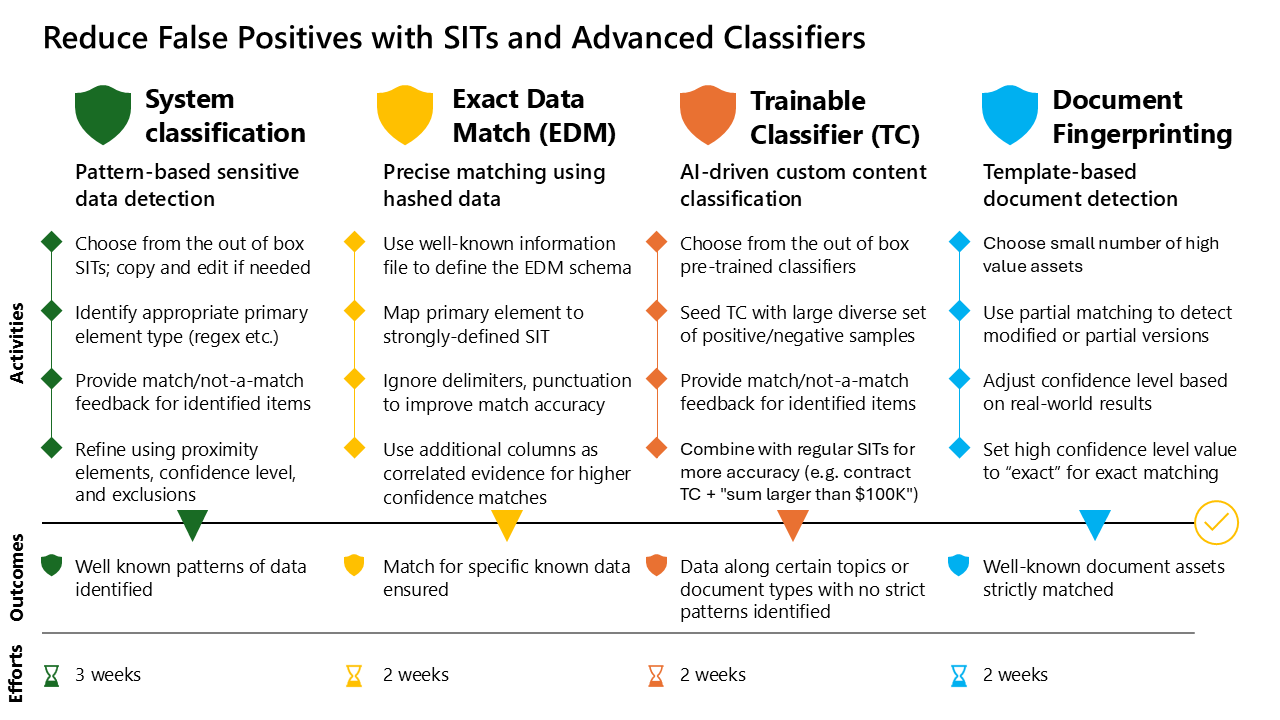

| Image column | Activities shown | Intended result | Estimated effort |
|---|---|---|---|
| System classification: pattern-based SITs | Select built-in SITs or clone/edit them; configure primary elements such as regex; provide feedback; refine proximity, confidence and exclusions | Detect familiar sensitive-data patterns accurately | 3 weeks |
| EDM | Define a schema from a known information file; choose strongly defined primary SITs; ignore appropriate delimiters/punctuation; use additional columns as corroboration | Detect particular known values | 2 weeks |
| Trainable classifiers | Start with pretrained classifiers; supply broad positive/negative samples for custom ones; provide feedback; combine with a SIT, for example a contract classifier plus an amount above $100K | Detect a document’s topic/type where fixed patterns are insufficient | 2 weeks |
| Document fingerprinting | Select a small set of valuable assets; detect partial/modified versions; tune confidence using real results; use exact matching at high confidence where necessary | Detect known documents with the required degree of similarity | 2 weeks |
Scenario selection — all eight source scenarios
PII means personally identifiable information; PHI means protected health information; OCR means optical character recognition; LoB means line of business.
| Scenario | Preferred approach | Alternative | Refinement |
|---|---|---|---|
| Known customers’ or patients’ PII/PHI | EDM using an LoB-system extract | Custom identifiers plus common PII SITs, such as SSN; the source also lists employee ID in this row | With ordinary SITs, require All Full Names and a suitable minimum occurrence count |
| Employee/contractor PII/PHI | EDM using an HR-system extract | Employee-ID SIT plus named entities/full names and common PII SITs | Require full-name evidence and a suitable minimum occurrence count |
| Forms containing personal data | Fingerprinting plus standard/custom SITs | Custom SITs with OCR for scanned forms | Consider EDM in place of custom SITs when fingerprinting is not used |
| Contracts, legal material and business forms | Custom TC, with OCR where needed | Built-in TC with OCR | Collect correctly detected documents as custom-classifier training material |
| Particularly important contracts/documents | TC plus sensitivity label | TC plus custom SIT for a monetary threshold, such as above $100K | Combine classifiers in one rule, such as Contracts and Project X |
| Unknown individuals’ general PII/PHI | Built-in or custom SITs | Manual labeling | Clone/tune keyword requirements and add full-name evidence |
| Scanned identity cards or similar | Built-in/custom SITs plus OCR | Keyword-list custom SIT plus OCR | Require named entities for names/addresses when they should appear on one line |
| Project information | Location-based labeling, such as a library’s default label | Manual labels or a custom TC | Use sufficiently representative location-labeled documents to train a TC |
The customer/patient row’s employee-ID example is retained as a source oddity; choose an identifier that actually corresponds to the intended population.
Step 1 — Pattern-based detection
Map the sensitive data types and their locations before selecting classifiers. Start with built-in SITs, clone and customize where appropriate, or create a custom SIT when no existing definition fits. Include necessary variants in one definition: a date-of-birth pattern may need both DD/MM/YYYY and MM/DD/YYYY.
Use on-demand classification against a limited, representative sample to iterate. For broad PII coverage, a DLP rule can combine SSN, driving-license and passport SITs with OR. This is a coverage choice; requiring corroborating evidence with AND, as in Model 1, serves a different purpose.
Primary element choices
| Element | Configuration guidance retained from the source |
|---|---|
| Regular expression | Validate against varied data; use lookarounds for context; use \b boundaries or word match for isolated values; use built-in validators where regex alone is insufficient |
| Keyword list | Choose case sensitivity as needed; use word matching for space-delimited languages; the source recommends string matching for Chinese, Japanese, Thai and Korean |
| Keyword dictionary | Useful for larger managed vocabularies; source limit is 1 MB of compressed text across all dictionaries in the tenant; dictionaries are case-insensitive |
| Function | Choose a predefined function when matching requires programmatic validation |
Precision controls
- Add supporting evidence:
DOBorDateOfBirthnear a date helps distinguish birth dates from email timestamps. - The model recommends 300 characters of proximity for a new custom SIT. Avoid unlimited document-wide proximity; for large tabular content it points to the PowerShell
RelaxProximityoption. - Assign higher confidence to restrictive patterns with stronger corroboration, and lower confidence where evidence is weak or absent.
- Refine included/excluded text, patterns, prefixes and suffixes.
- Use the SIT test function and Content Explorer to inspect actual matches.
- Submit match/nonmatch feedback for SharePoint and OneDrive items. Sending Microsoft a redacted item is an optional additional feedback step.
Expected result: usable SIT definitions with a measured feedback loop, not simply a larger list of patterns.
Step 2 — Exact Data Match
Upload a sample file to define the EDM schema through the provided automation. Identify columns for primary values and corroborating evidence. Choose a strongly patterned primary field, such as an SSN or payment-card number, and map it to a suitably restrictive SIT.
A loose primary SIT can generate excessive candidate matches, causing throttling/timeouts and missed detections. The source identifies these specific hazards:
| Loose primary pattern | Problem or refinement |
|---|---|
| Plain number shorter than five digits | Too common to discriminate well |
| Email address without excluding the company’s domain | Matches routine organizational email |
| Date of birth without excluding recent/future dates | Includes irrelevant dates |
| All Full Names | Excessive matches and longer strings containing candidate names |
| GUID regex | Matches routine email-header identifiers |
\d{6} |
Also matches within longer numbers; isolate with \b\d{6}\b |
| Street-address SIT | Many written variations make this a weak primary selector |
Configure punctuation/delimiter normalization where appropriate. For example, +11234567890, (+1) 123 456 7890 and +1 123-456-7890 should match the same reference phone number when those differences are intentionally ignored.
| Supporting-evidence choice | Guidance |
|---|---|
| Match mode | Select single-token, multi-token or SIT per column |
| SIT mapping | Prefer an accurate built-in/custom SIT mapping for better accuracy and latency |
| Token count | Avoid multi-token matching for a consistently single-token field |
| High confidence | Require more supporting values within the chosen character proximity |
| Lower confidence | Optionally require fewer supporting values, or none when the primary value is sufficiently precise |
| Proximity mode | Choose wide or narrow according to how supporting evidence should be checked |
Expected result: known values detected precisely, with deliberate normalization and confidence settings.
Step 3 — Trainable classifiers
- Evaluate Microsoft’s pretrained classifiers against representative content. Use a suitable one directly in policies.
- If its accuracy or coverage is insufficient, create a custom classifier with varied positive and negative examples.
- Build positive samples from correctly identified documents, remove false matches and add relevant documents found manually.
- Use unrelated material and the original classifier’s false matches as negative examples. Include the organization’s vocabulary, names and document variations.
- Review match/nonmatch feedback continuously. For an inaccurate custom classifier, the source recommends removing and recreating it with a larger, better-curated dataset.
- Combine a TC with a SIT when both document context and a precise pattern are needed.
The step’s hybrid example pairs the pretrained Business Context classifier with a custom SIT identifying contract amounts above $100K. The image describes a contract classifier more generally. Preserve the example’s intent, but verify the classifier name in the current catalog before configuring a policy; this conversion does not silently substitute a different classifier.
Expected result: contextual detection supported by representative samples and, where useful, pattern-based corroboration.
Step 4 — Document fingerprinting
Start with a small number of known, valuable or highly sensitive documents/templates. A full match detects an identical version; a high match tolerates limited differences. Partial matching supports modified templates and excerpts.
Example thresholds from the page
| Confidence | Minimum fingerprint match |
|---|---|
| Low | 50% |
| Medium | 70% |
| High | 90% |
These percentages are an example configuration, not universal defaults. Raise the minimum match threshold when false positives dominate; lower it when legitimate variants are missed. Inspect real matched items before adjusting.
Choose exact matching for structured critical documents where variation must not be accepted. Otherwise, a high percentage can be more useful than 100%: PDF conversion, added headers/footers and file-format upgrades can alter a document enough to break an exact match.
For the exact-match case, the source specifically instructs setting the high confidence level value to exact. This is a separate configuration choice from the example’s 90% high-confidence threshold; selecting high confidence alone must not be read as selecting an exact match.
Expected result: known documents recognized at a consciously chosen tolerance, with false negatives considered alongside false positives.
DLP tuning across all four approaches
A classifier match is an input to a policy decision. Increase the minimum instance count when isolated/trivial matches should not trigger action. Use a lower count, including a single occurrence, when the data’s sensitivity requires it. In Content Explorer, review data types, locations, occurrence counts and confidence together. Select and combine technologies by scenario rather than assuming one method is universally best.
Source-specific cautions
- Effort estimates are separate from product limits, confidence percentages and match counts.
- The source’s dictionary limit, language-matching advice, classifier name and PowerShell option are preserved as published; linked feature references are the place to check current applicability.
- Requiring full names as corroboration does not imply that All Full Names is a good EDM primary element.
- No exact sample-size requirement for custom classifiers is given in these model pages; none has been invented here.
Supporting references
Collection index · Model-page and image coverage
These links are extracted from the article bodies. Repeated model navigation is covered by SOURCES.md; the remaining references are deduplicated within each model. Link labels retain the source’s terminology. A listing does not mean that the target’s full contents were converted or its current feature claims verified.
Overview
| Reference | Source location |
|---|---|
| Learn about Microsoft Purview | Overview |
| Secure and Govern Microsoft 365 Copilot blueprint | Overview |
The Secure and Govern Microsoft 365 Copilot blueprint short link resolved during collection to foundational deployment guidance. It is additional reading beyond the six selected models.
1. Secure by default with Microsoft Purview
The secure-by-default blueprint’s footer also prints a deployment-guide short link. This is an image-embedded reference in IMG01/IMG07, separate from the article-body links below.
2. Prevent data leaks to shadow AI
3. Secure and govern Microsoft 365 Copilot agents
4. Deploy and use Data Security Posture Management
5. Lightweight guide to mitigate data leakage
6. Reduce false positives with SITs and advanced classifiers
Deployment conversion review — 7 September 2026
Collection index · Source register · Supporting references
The collection was substantially accurate, but its summaries did omit some source detail. All six guides have now been reviewed against the live Microsoft deployment models and amended where needed. No entire model, deployment step, source table, scenario row or blueprint activity was missing. No further material conversion discrepancy was identified after the corrections below. This conclusion concerns fidelity to these deployment models; it does not resolve contradictions within Microsoft’s guidance or independently certify product behavior.
Scope and evidence
The review covered the overview, six introductions and all 23 step pages: 30 pages total. It included 11 HTML tables with 51 data rows, seven distinct image assets representing six blueprints, all accompanying qualifiers and numeric values, and the 96 unique supporting article-body URLs with their per-model source-page attribution.
Each article was read in full through the Microsoft Learn MCP and compared with its consolidated guide. Raw HTML was independently fetched to verify tables, image/link inventories and publisher metadata. All seven images were visually inspected, including both secure-by-default resolutions. Their SHA-256 hashes exactly match the original source register; all source pages retain the recorded March/June 2026 metadata. The four classification methods were checked as alternatives/combinations, and the DSPM architecture was checked separately from its operating sequence.
The original conversions are preserved in originals. The evidence manifest records fetched page URLs, metadata, hashes, headings, images and links. Source HTML, MCP Markdown and source images are stored alongside it. Article procedures were treated as material to review, not instructions to change a tenant or execute deployment actions.
Corrections and clarifications
| Guide / location | Finding in the original conversion | Change made |
|---|---|---|
| Secure by default — Step 1 | Settings survived, but several user-facing descriptions did not: owners’ ability to track/revoke; Confidential recipients’ ability to reshare; and the different permission descriptions for the two All Employees labels. The top-level named-recipient instruction also conflicted with an All Employees child without being recorded. | Added a separate description table and explicitly preserved the source tension. Retained Co-Author, Encrypt-Only, Do Not Forward, all scopes, DLP restrictions and the inconsistent footer exactly as settings. |
| Secure by default — Step 1 | Mismatch-notice recipients, the example’s move/relabel response and site-label-driven sharing-link configuration were compressed out. | Restored both recipients, the higher-sensitivity trigger, owner actions and the distinction between General and Confidential site defaults. |
| Secure by default — introduction and Steps 2–3 | Several source examples and distinctions were only implicit: other workloads staying General in the first milestone, site-context-first historical labeling, the alternative General client default, and higher service thresholds. | Restored these alternatives, the General-file Adaptive Protection example, classifier/context examples, the source’s 300+ SIT count and the introductory integration rationale. |
| Secure by default — Step 4 | The operational table lost some methods and follow-up actions; the wider-protection summary omitted scenario examples and the portal milestone. | Restored Graph-based mismatch review, owner/member outreach, inactive-site removal, high-sharing access reviews, partner-domain/offshore examples, retained-access details and the source’s July 2024 portal milestone. |
| Shadow AI — blueprint and Step 4 | The table preserved Edge scope, but the standalone Mermaid governance node did not. The eDiscovery task list omitted analysis. | Added the image’s Edge qualifier to the diagram and restored the analyze stage. Existing product superscripts, browser/network distinctions and simulation instructions were correct. |
| Copilot agents — blueprint and Step 3 | Qualified wording replaced the source’s absolute grounding-data outcome and summarized its conversation-protection assertion too loosely to recover all source claims. | Explicitly recorded the original outcome as an objective and the three conversation-level assertions as source claims. Kept enforcement limitations separate from the label-display verification procedure. |
| DSPM — architecture, Steps 3–4 | The source architecture’s connecting lines had become directional arrows without an interpretation note. Promptbook inputs/counts survived, but their investigation purposes and some view navigation did not. | Identified arrowheads as a logical interpretation, restored Reports/Overview navigation and added both Promptbooks’ purposes while retaining six prompts and 30-day limits. |
| Lightweight protection — Steps 2–3 | The source’s attached-or-linked-file claim was present only in a caution, and the encryption summary omitted the alternative of content containing critical SITs. | Restored those alternatives directly in the configuration tables, preserving the workload-support caveat and the distinct 7-day/15-day workflows. |
| False positives — Step 4 | Exact matching was described, but the instruction to set the high confidence level value to exact was implicit. | Made the configuration explicit and distinguished it from the separate example’s 90% high-confidence threshold. |
| References / index | The image-footer deployment URL was omitted; the overview’s audience and provenance were only implicit. | Added the IMG01/IMG07 footer URL as an image-embedded reference and restored the overview context. All 96 unique article-body reference URLs and their source-page mappings were already retained. |
Page-by-page comparison
“Pass” means no substantive conversion change was needed for that page. “Expanded” means the corresponding detail was restored or clarified as described above. Page names and direct source URLs are mapped in SOURCES.md.
| Source page | Checks performed | Result / converted location |
|---|---|---|
| Overview | Six-model order; 29 child-page links; six overview images; audience; supplementary Copilot reference | Expanded index; navigation and model count pass |
| Secure by default: Introduction | Scope/exclusions; prerequisites; licensing feature families; six strategy actions; three adoption milestones; benefits; blueprint | Expanded purpose |
| Secure by default: Step 1 | Four parent labels and optional personal label; six children; all eight settings rows; scope/privacy/footer/encryption/DLP; ten prerequisites; priorities; exception scenarios | Expanded Step 1 |
| Secure by default: Step 2 | Priority-site selection; separate site/library operations; client/service credentials labels; historical Office/PDF context; unlabeled DLP; adaptive behavior | Expanded Step 2 |
| Secure by default: Step 3 | 1–9/10+ examples; 100,000 files/day; six contextual conditions; classifier tuning; four scaling strategies; PnP and REST identifiers | Expanded Step 3 |
| Secure by default: Step 4 | Four operational reviews; partner/project/user-segment scenarios; scanner/migration; BYOK/DKE scope; five accountability actions; four non-M365 sources and preview qualifier | Expanded Step 4 |
| Shadow AI: Introduction | Risk definition; four prerequisite/license families; all four deployment rows; product ownership markers and outcomes | Pass introduction; standalone diagram qualifier improved |
| Shadow AI: Step 1 | Generative AI catalog filtering; risk/tagging; three discovery policies; DSPM reports/Activity Explorer; IRM visibility | Pass Step 1 |
| Shadow AI: Step 2 | Unsanctioning and propagation verification; Entra user/group/risk controls; Intune installations; unmanaged-network caveat | Pass Step 2 |
| Shadow AI: Step 3 | Encryption; Devices location, conditions and actions; simulation; four named consumer apps; Edge prompts; network detection; Defender monitoring | Pass Step 3 |
| Shadow AI: Step 4 | Audit default/verification; Communication Compliance; retention locations/periods; all investigation stages and holds; Edge risk blocking | Expanded Step 4 |
| Copilot agents: Introduction | Grounding/interactions distinction; risks; prerequisite and licensing lists; four deployment rows; blueprint acronyms/outcomes | Expanded introduction |
| Copilot agents: Step 1 | Audit activation and 60 minutes; SharePoint/OneDrive assessments; Dataverse/Unified Catalog; Apps and Agents report; Compliance Manager | Pass Step 1 |
| Copilot agents: Step 2 | Most restrictive label and user permissions; retention scope; custom Copilot DLP conditions/action/simulation; Dataverse policy gap; labeled/unlabeled oversharing | Pass Step 2 |
| Copilot agents: Step 3 | Three inheritance-verification steps and three stated effects; file restriction versus web-query wording; Risky AI usage template, scope, triggers and enablement | Expanded Step 3 |
| Copilot agents: Step 4 | Retention/deletion; jailbreak/harassment/image examples; eDiscovery stages; grounding-plus-interaction DSI; recurring Compliance Manager work | Pass Step 4 |
| DSPM: Introduction | Capabilities and prerequisites; optional Copilot; four deployment rows; monthly iteration; architecture and five-part ribbon | Pass introduction; arrow interpretation clarified |
| DSPM: Step 1 | Built-in/custom SITs; labels helpful but not required; IRM program; optional Copilot, investigations, Promptbooks and Viewer role | Pass Step 1 |
| DSPM: Step 2 | All five role rows; least privilege; joint/individual analytics enablement; settings verification; automatic scan; up to three days | Pass Step 2 |
| DSPM: Step 3 | Two reports; filtering/export; three trend measures and weekly qualifiers; recommendation generation, updates and 30-day removal/review | Expanded Step 3 |
| DSPM: Step 4 | Four policy-creation steps; minutes/24 hours; updating existing policies; both investigation entry points; all three prompt topics; both Promptbooks; five gallery categories; monthly cycle | Expanded Step 4 |
| Lightweight: Introduction | Three levels and steps; prerequisites; license progression; effort caveat; empty blueprint heading versus overview image | Pass introduction |
| Lightweight: Step 1 | Parent/child scopes; priority toward zero; publication audience/default; labeled-file enablement; separate Exchange policy; external blocking; immediate rollout; Audit Logs role | Pass Step 1 |
| Lightweight: Step 2 | IPG wording; all three SIT examples; primary/supporting elements; client recommendation; Devices/Teams/Exchange conditions and actions; 15-day option; inheritance | Expanded Step 2 |
| Lightweight: Step 3 | E5 Compliance wording; encryption selection/permissions; service locations and 7-day option; analytics triggers; Minor/Moderate/Elevated risk; Conditional Access and report-only option | Expanded Step 3 |
| False positives: Introduction | Four technologies and deployment rows; all eight scenario rows with alternatives/refinements; OCR, full names, $100K; DLP count/confidence tradeoff | Pass introduction |
| False positives: Step 1 | Built-in/custom definitions; DOB formats; OR coverage; four primary-element types; language/case advice; 1 MB; 300 characters; RelaxProximity; confidence/exclusions; optional redacted feedback | Pass Step 1 |
| False positives: Step 2 | Schema automation; all seven weak-primary examples; regex boundaries; three phone formats; three match modes; supporting evidence; wide/narrow proximity | Pass Step 2 |
| False positives: Step 3 | Pretrained evaluation; varied positive/negative samples; curation; feedback/recreation; Business Context example and >$100K hybrid | Pass Step 3 |
| False positives: Step 4 | High-value assets; partial matching; 50/70/90% examples; false-positive/negative tuning; exact-match configuration; three conversion-change examples | Expanded Step 4 |
Image comparison
| Asset | Visual checks and result |
|---|---|
| IMG01 and IMG07 — secure by default | Both resolutions show the same four stages, 16 activities, four outcomes and efforts of 1 week / 2 weeks / 2-week iterations / situational. All technical content is represented; footer reference added. |
| IMG02 — shadow AI | Four stages; 13 activity diamonds, including the combined limited-access/user/risk item; product markers 1–4; Edge-qualified governance; network blocking wording; date. All retained; Edge qualifier added to the standalone Mermaid. |
| IMG03 — agents | Four stages; 16 activities; grounding-versus-interaction structure; outcome language; all acronyms and date. Qualified outcome wording now accompanied by the explicit source objective. |
| IMG04 — DSPM | Three analytics inputs; six context elements; five report/trend items; recommendation functions; investigation options and five gallery categories; five-stage operating ribbon. All represented; arrowhead interpretation documented. |
| IMG05 — lightweight | Three levels; four activities per level; three outcomes; 1–2 / 2–4 / 1–2 weeks; tenant/complexity footnote. All represented; critical-SIT encryption alternative restored explicitly. No license tiers are printed in this image; the conversion correctly attributes them to the step pages. |
| IMG06 — classifiers | Four technologies; four activities each; four outcomes; 3 / 2 / 2 / 2 weeks. Comparison semantics preserved; exact-at-high-confidence instruction made explicit. |
Source issues retained for implementation review
These are issues in the source guidance, not remaining conversion omissions:
- Secure by default: conflicting user-description/permission wording, the Highly Confidential/Internal exception footer, named-recipient versus All Employees wording, and different general/credential-specific auto-labeling choices. Container, library and historical-file labeling remain separate operations.
- Shadow AI: image network blocking versus step-page detection; broad claims about encryption/paste protection and capture of all AI interactions; unmanaged-access limitations. The conversion preserves source claims and qualifiers without promising universal enforcement.
- Copilot agents: no detailed Dataverse data-policy procedure; conversation-level protection assertions; file-processing restrictions described alongside prompt/web-query restrictions. A displayed sensitivity label alone does not validate all of these behaviors.
- DSPM: labels and Security Copilot are recommended/optional despite appearing in the foundational path. Role names and processing timings are retained as model statements.
- Lightweight: image automatic client labeling versus initial recommendations in the step; Teams label/condition support; attached-or-linked-file inheritance claims; source licensing names. None is silently rewritten into a newly verified product entitlement or support matrix.
- False positives: Business Context classifier name; employee-ID example in the customer/patient row; source-specific dictionary/proximity values; exact matching versus percentage confidence examples.
The wider product documentation, license entitlements, API behavior and third-party examples were not recursively reviewed. Preview status and limits may differ from current product documentation. Decorative imagery, repeated navigation and repeated summaries are intentionally consolidated.
Validation and review artifacts
The validation results record local file/anchor checks, source coverage, article-reference attribution, source tables and image fingerprints. The render results record Mermaid rendering and horizontal-overflow checks for the six updated guides at a 1440-pixel viewport. The rendered files provide HTML and screenshots for visual inspection.
The conversion diff compares the preserved original Markdown with the reviewed collection. These are documentation checks; no Microsoft tenant configuration was executed or tested.
Source coverage
Retrieved 7 September 2026 from Microsoft Learn. Coverage: 30 pages (overview + six introductions + 23 steps) and seven distinct image URLs. Repeated blueprint appearances were consolidated; the secure-by-default thumbnail and full-resolution image are separate source assets for the same blueprint.
All 30 live pages carried ms.date 2026-03-31 and updated_at 2026-06-15T22:35:00Z in their HTML metadata. These are the publisher’s metadata values, not proof that every configuration detail or diagram was revised then. Visible image dates are recorded separately.
The detailed conversion review re-fetched all 30 pages and seven images on 7 September 2026 and confirmed those metadata values and all seven image fingerprints. Original conversion files, fetched HTML, Learn MCP Markdown, images and the retrieval manifest are retained under Resources/purview-review-2026-09-07/ for comparison. Raw HTML is authoritative for links: the Learn MCP Markdown response omits the overview’s supplementary Copilot blueprint link, which is present in HTML and retained in REFERENCES.md.
Overview
Microsoft Purview deployment models supplies the six-model selection, navigation and overview images. Its model index is reproduced structurally in the collection index.
1. Secure by default with Microsoft Purview
2. Prevent data leaks to shadow AI
3. Secure and govern Microsoft 365 Copilot agents
4. Deploy and use Data Security Posture Management
5. Lightweight guide to mitigate data leakage
6. Reduce false positives with SITs and advanced classifiers
Image register
Every distinct image was inspected visually. Meaningful activities, outcomes, effort, ownership markers and architecture relationships are transcribed in the destination guide. Repeated branding and decorative icons are not reproduced as raster assets.
| ID | Original asset | Appears on | Conversion | Visible date |
|---|---|---|---|---|
| IMG01 | IMG01.png |
Overview | Stage/activity/outcome/effort table + stage flow | Thumbnail; see full image |
| IMG02 | IMG02.png |
Overview; Introduction; Step 1; Step 2; Step 3; Step 4 | Product marker key + ownership/activity/outcome table + stage flow | 18 July 2025 |
| IMG03 | IMG03.png |
Overview; Introduction; Step 1; Step 2; Step 3; Step 4 | Activity/outcome table + acronym key + stage flow | 26 August 2025 |
| IMG04 | IMG04.png |
Overview; Introduction; Step 1; Step 2; Step 3; Step 4 | Architecture Mermaid + context table + operating-sequence Mermaid | None |
| IMG05 | IMG05.jpg |
Overview | Good/Better/Best table + effort + stage flow | None |
| IMG06 | IMG06.png |
Overview; Introduction; Step 1; Step 2; Step 3; Step 4 | Technology/activity/outcome/effort comparison table | None |
| IMG07 | IMG07.png |
Introduction; Step 1; Step 2; Step 3; Step 4 | Full version of IMG01; same conversion | 4 May 2025 |
Image fingerprints
SHA-256 fingerprints identify the exact image bytes inspected. They can help detect source-image changes during a later refresh.
IMG01/IMG07 also contain a deployment-guide URL in their footer; this image-embedded link is now retained separately from the article-body reference tables.
| ID | SHA-256 |
|---|---|
| IMG01 | d2d13afa1c813781c87febb16ecd0d45f09a38d48a46d2ac7fad44692bba9c22 |
| IMG02 | 844b0ec3603bae8f49f01d56476455dcb26429fb894cfe4db1a68b3ace301ff1 |
| IMG03 | 4152212d3ac264341be48764ce338af95979bac851b6770a1effb7c5c6888d15 |
| IMG04 | cf56688c2c61b940e393f453fb3e440592f7f5fd885dd0dfeddcd194c323145e |
| IMG05 | 504fb1a42a1cfa213d9f19f128fb75c2f09adaa9ee4fe6c137fbd0a0863c3c2b |
| IMG06 | a8e1bd9b20e888a594cd18332d8f3fbb3d23e985b45ef9db621f7bf6d486d28e |
| IMG07 | 672523b4ad51f1ac7e4d49e4761e465a5b33de9c5cc4f2e277bd48bb7395e661 |
Boundaries of this conversion
- All model introductions and step pages linked from the overview are included.
- No direct PDF asset was linked from the collected article bodies. The broader Copilot blueprint link leads to another documentation guide; it is retained in supporting references, outside these six models.
- Supporting product documentation, licensing pages and third-party examples remain links. They have not been recursively converted or independently reconciled with the deployment-model guidance.
- Editorial notes identify inferred distinctions, source inconsistencies and missing procedures. They are not presented as additional Microsoft requirements.
- This is a consolidated, reworded reference, not an archived verbatim copy. Source navigation and repeated summaries/images are consolidated while configuration facts and examples are retained.